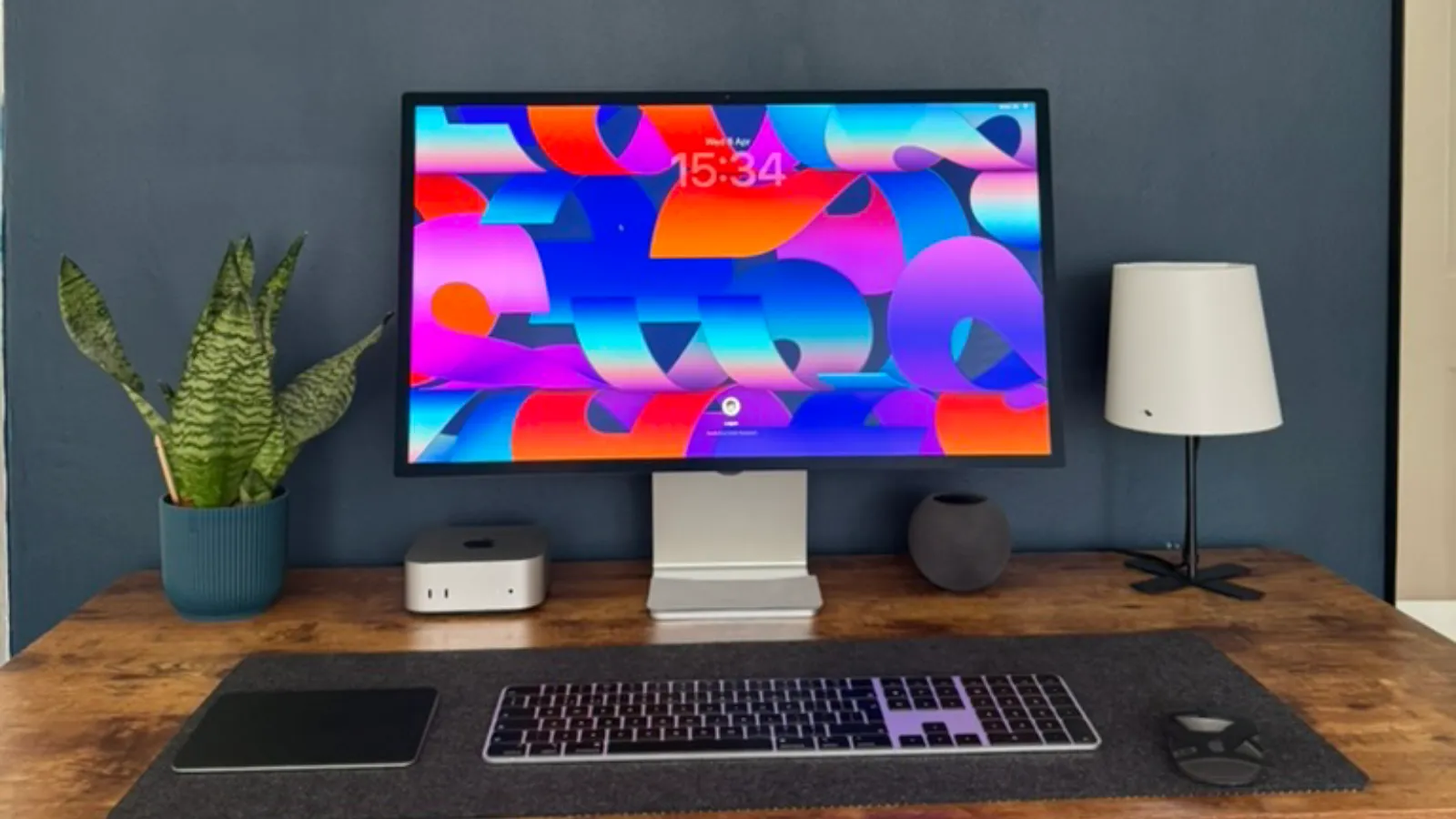
Earlier this year, after building up my Apple ecosystem with an iPhone, Apple Watch, AirPods, iPad and multiple Macs, I decided to make my most expensive purchase yet: the Apple Studio Display.
Luckily for me, Apple had just refreshed the display for the first time in four years, so I picked up the 2026 Apple Studio Display with nano-texture glass and the tilt-adjustable stand for an eye-watering £1,619.10.
So, after six months of using this display, what are my thoughts? And, most importantly, would I buy it again?
The display panel itself
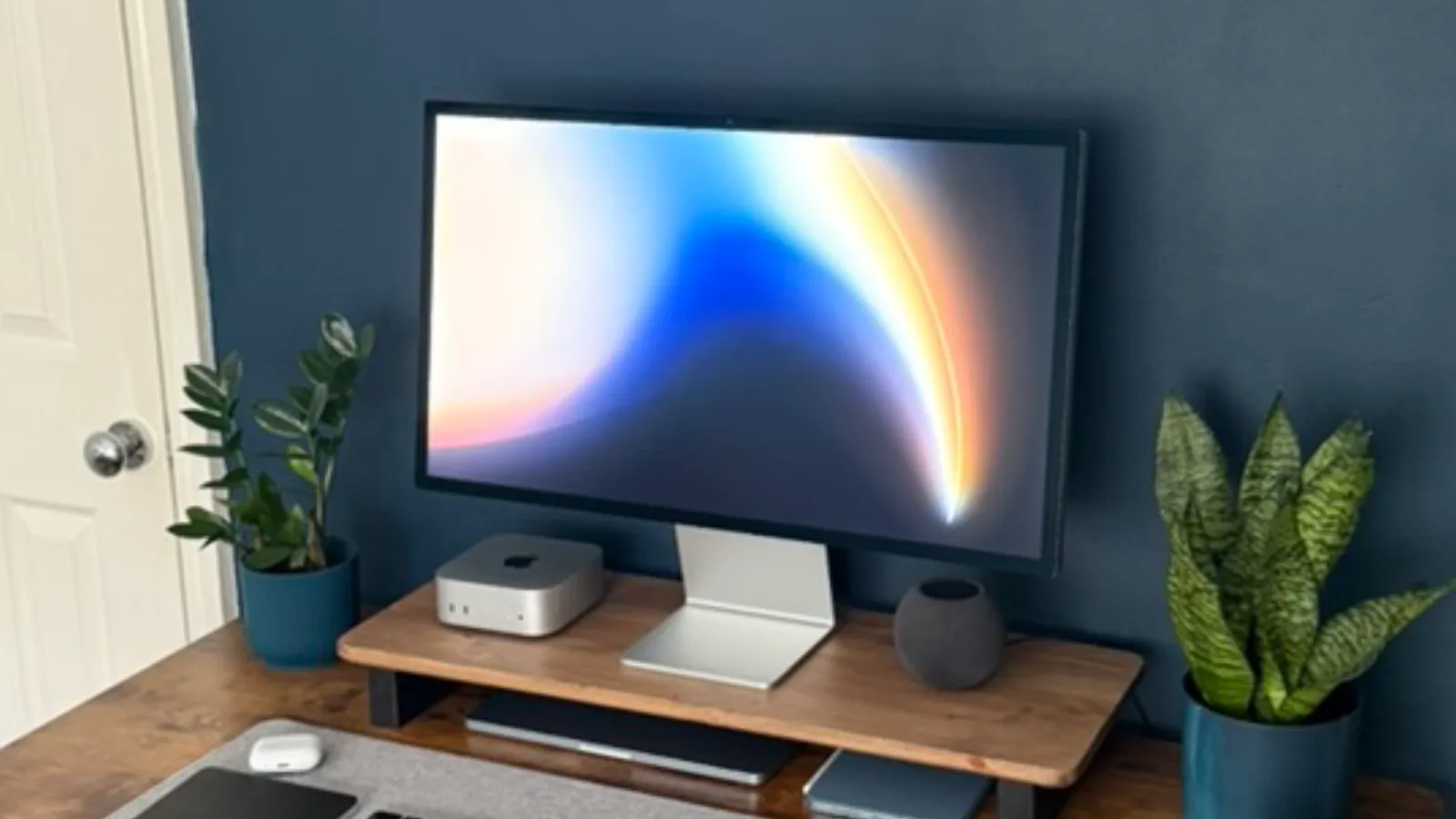
Admittedly, the display panel on the Apple Studio Display is on the older side. It uses an LED-backlit LCD panel at a 60Hz refresh rate in a world of OLED displays at higher refresh rates which provide more accurate blacks and a smoother experience.
However, this has not been a problem for me.
When you're at a desk, using a desktop computer, you're usually completing work and productivity tasks which includes browsing the web, note taking, coding and graphic design in an app such as Pixelmator Pro or Photoshop.
In these situations the LCD 60Hz panel is perfectly capable, and I have no complaints.
The Studio Displays technical specifications are extremely similar to previous third-party monitors I have used, but with minor improvements including the 5K resolution, increased brightness and Apple's colour calibration, which give the effect that the panel is a lot better than it is on paper.
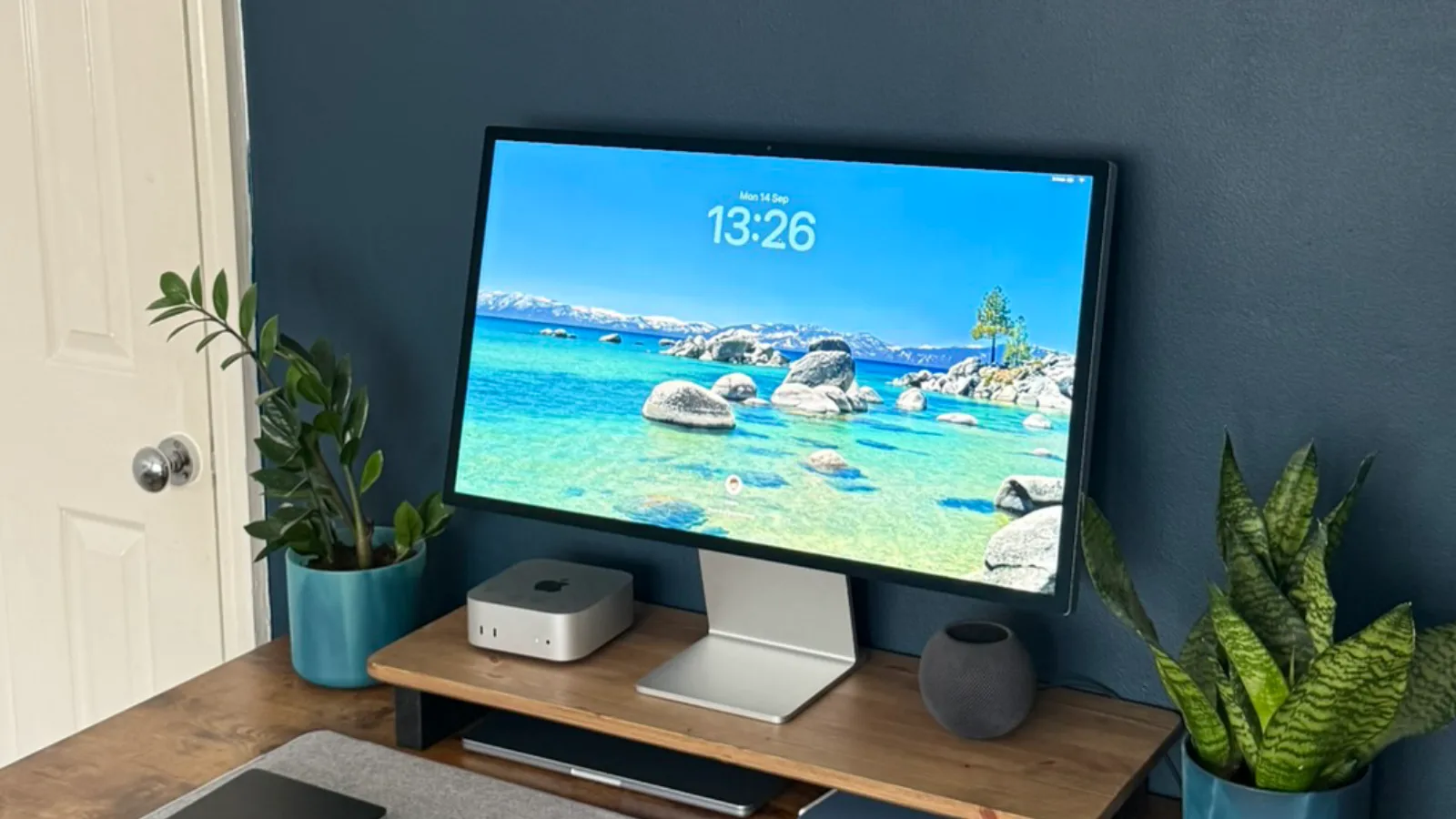
macOS scales much better at 5K on a 27-inch display when compared to my previous 4K 27-inch monitor, with icons and text appearing much sharper and with more clarity, even with the nano-texture finish.
Additionally, previous monitors I have used maxed out at 400 nits of brightness. This is fine, but the 600 nits of the Studio Display help colours pop and provide a much more enjoyable viewing experience.
The Apple Studio Display also comes with it's own Apple Display (P3-600 nits) colour profile, which is a factory calibrated Apple colour profile that brings out the true colours of content on screen, and matches your other Apple displays such as my MacBook Air and iPad mini.
Nano-texture glass
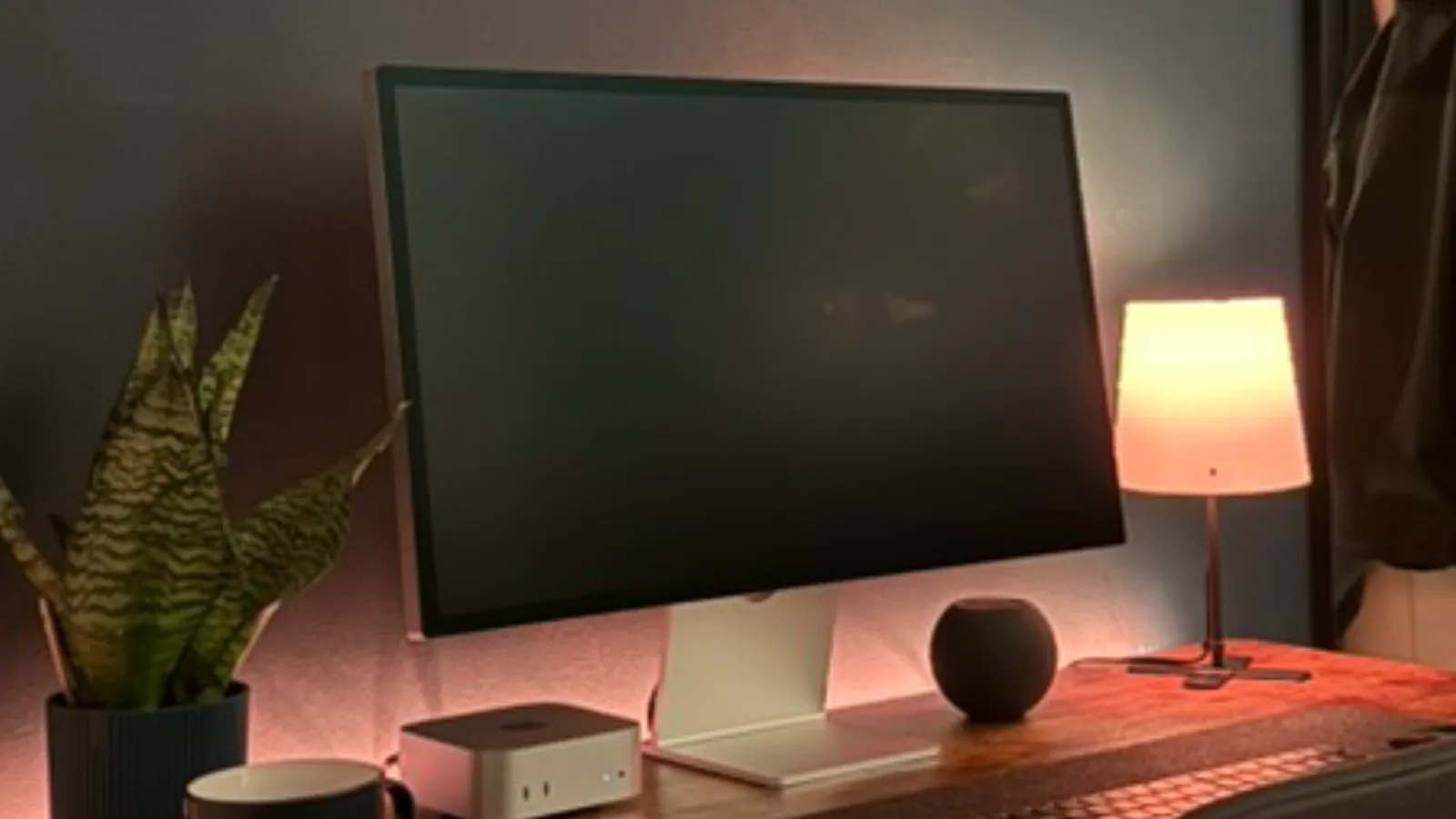
At checkout, I was still conflicted over standard or nano-texture glass. I was aware that a nano-texture finish could affect the display’s sharpness and colour accuracy, but my desk also sits opposite a large bay window that brings in sunlight most hours of the day.
As a result I went for nano-texture, and was pleasantly surprised when I unboxed my display.
Yes, there is a little grainy effect. However, at a normal viewing distance it is not noticeable and hasn't degraded my experience over the past 6 months.
The sharpness of text and clarity of content, such as app icons in the dock, remain, and the colours still pop.
Of course, I don't have a standard glass Studio Display to compare to, but compared to my glossy MacBook Air screen, the differences are negligible.
If you're considering the Studio Display and work in a bright room, I'd seriously consider opting for nano-texture glass. It costs extra, but in my environment, the reduction in reflections has been worth the trade-off, and it's made me wish Apple offered nano-texture on the MacBook Air.
The premium Apple experience
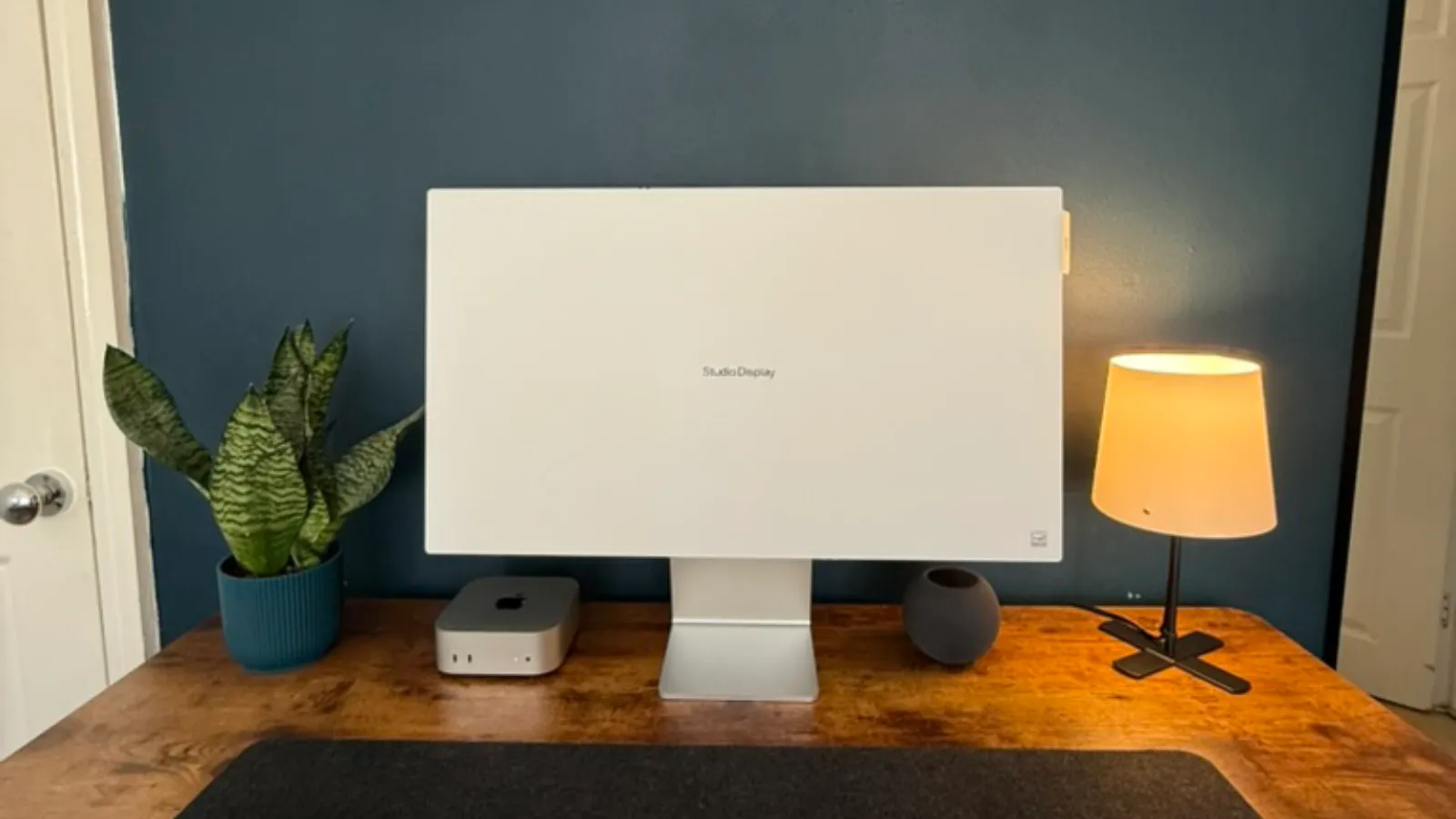
This is where the Apple Studio Display rises above other monitors on the market, with the first-party integration with the Mac, overkill aluminium build quality and conveniently integrated power supply unit.
Fast waking from sleep
My biggest gripe with many third-party monitors is that they are very slow to wake from sleep.
Having used an MSI and BenQ monitor with my Mac mini, I was pleasantly surprised that the Studio Display wakes almost as soon as I hit a key on my keyboard, or tap the trackpad.
This allows me to sit down and get straight back to what I was doing.
Previously, with third-party monitors, I'd sit at my desk and feel the haptic feedback from my Apple Watch that my Mac had been unlocked, but have to sit and stare at the black screen for about 5-10 seconds for the display to catch up.
This doesn't sound like much, but it is something that frustrates me throughout the day when I come and go from my desk.
Brightness and volume adjustment
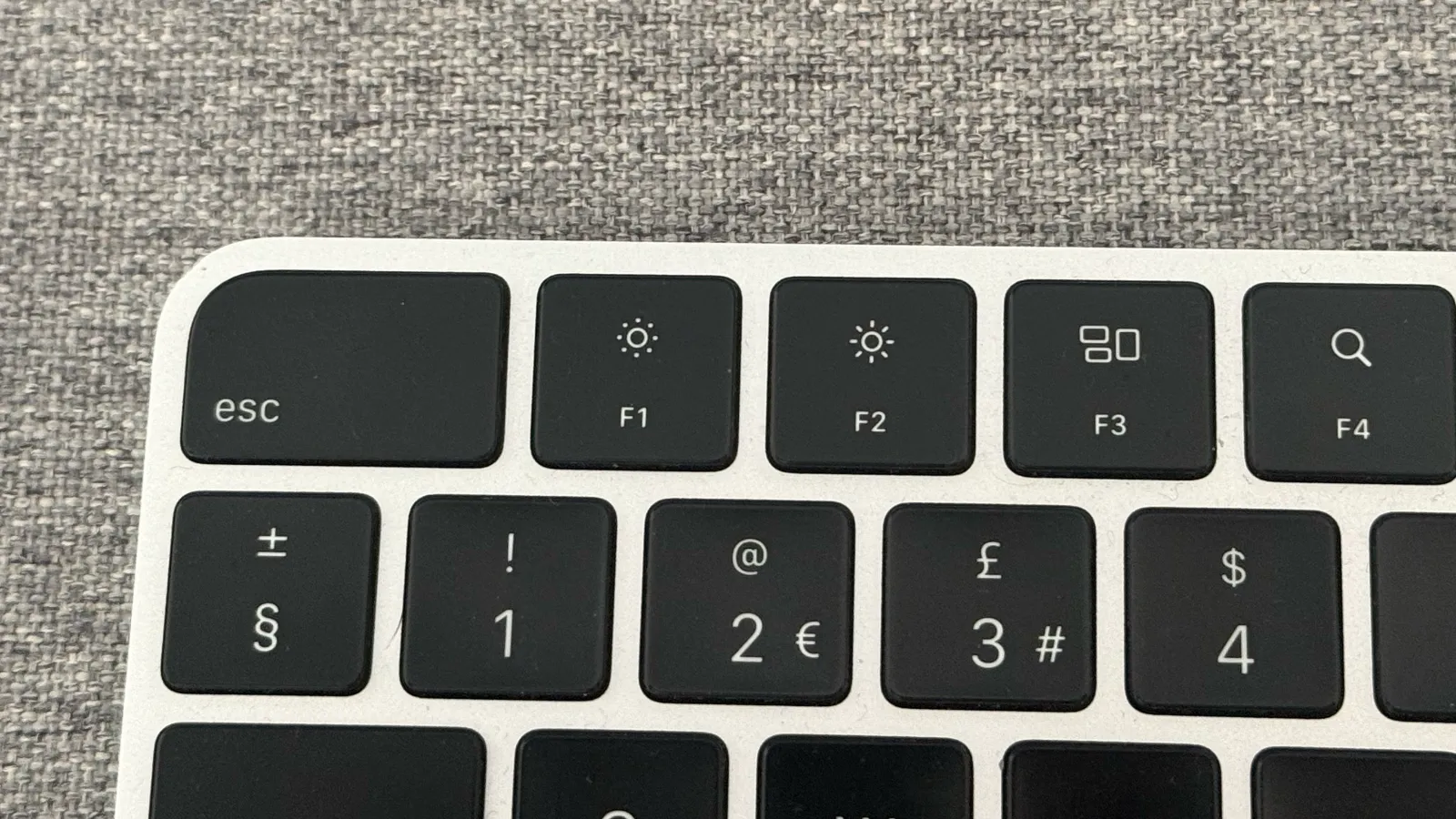
Depending on the monitor you go for, you might not be able to control the brightness or monitor volume from your Mac keyboard, and have to use the janky buttons and interface on the monitor itself.
In the past, the only way to adjust brightness or speaker volume was to use the physical buttons on the monitor, which was extremely annoying as these interfaces are usually very unintuitive and slow to control.
When I had a BenQ MA270U, I was drawn to the device as they advertised software that allowed you to control brightness and volume from your Mac keyboard.
At a much lower £499 price tag, I made the purchase and installed the Display Pilot software. This did make my keyboard keys work, but put a fake macOS interface of volume and brightness on the screen which was outdated when macOS Tahoe was released a few months later.
Additionally, the software would often not seem to work and need restarting regularly.
This is one of the reasons I decided to bite the bullet and buy the studio display as these interactions just work, 100% of the time.
Integrated power supply
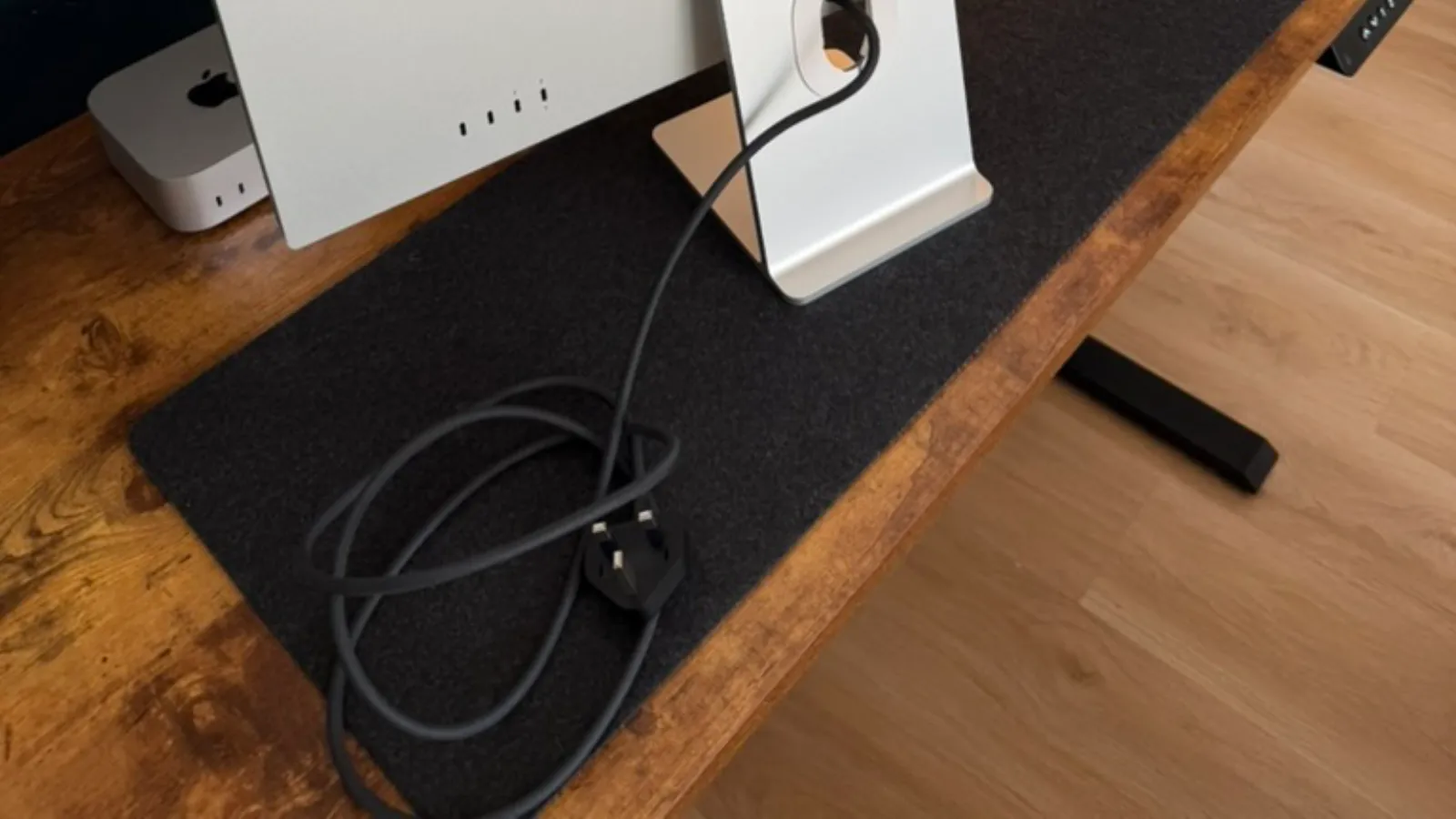
Apple Studio Display comes with just two cables; the power cable and the USB-C Thunderbolt cable.
The power cable is permanently attached to the back of the display, which can be a repairability headache. However, I like the simplicity of the built-in cable and that it is just one simple wire with no external power supply bricks like you find on some other monitors and the iMac.
This does add to the thickness of the display, but I'd rather that than an annoying power brick on the floor near your feet all day.
Build quality
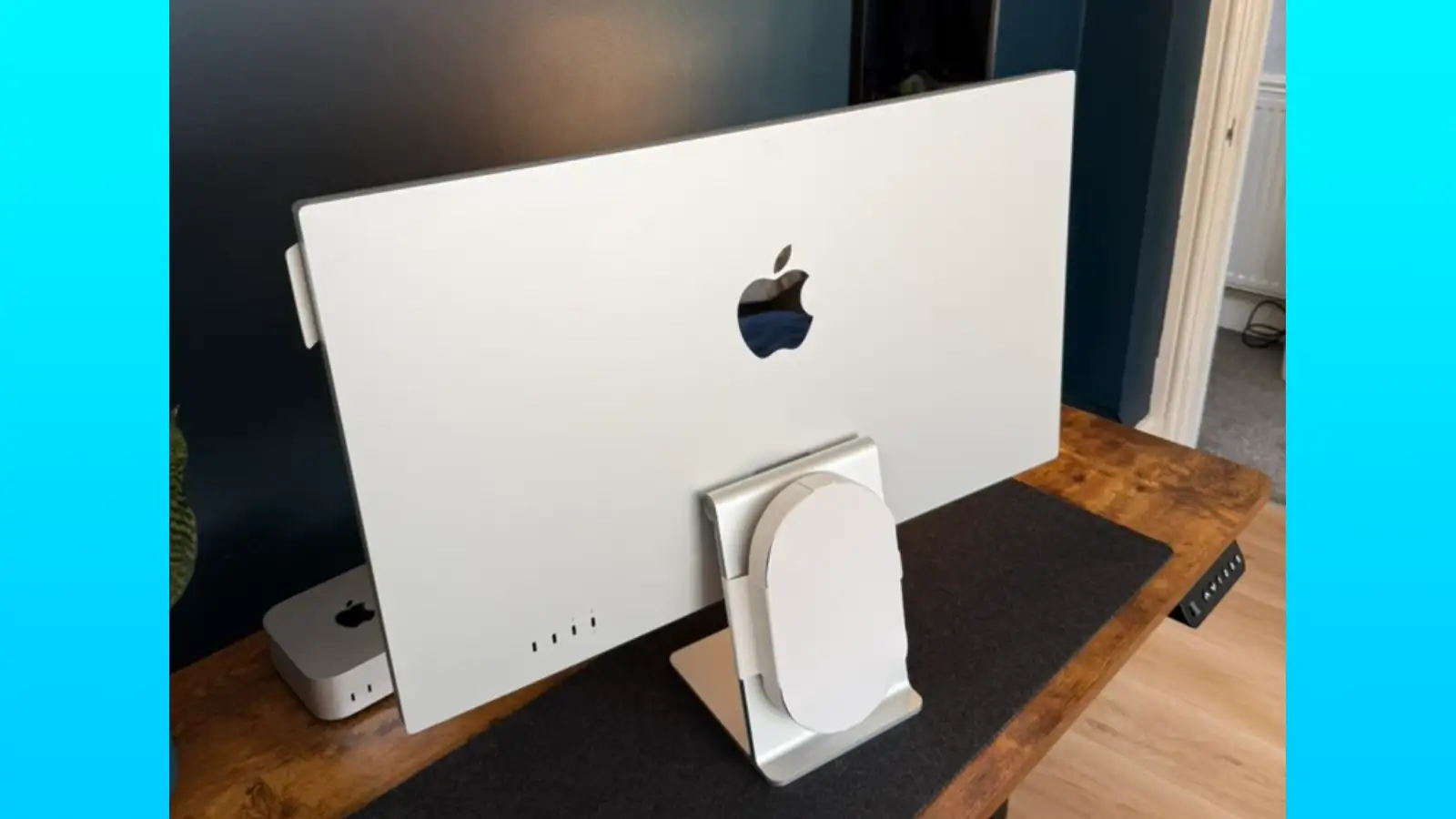
Apple's display is built of aluminium and glass, rather than plastic.
This may be overkill for something that sits in one place all day, but gives you the same premium effect as the rest of your Apple ecosystem and lets it fit right in next to a Silver aluminium Mac mini or Mac Studio.
And, if you do pick it up or touch it, the Studio Display does not creak like its plastic counterparts. This also eliminates the popping and crackling noise that plastic monitors may periodically make throughout the day as the plastic expands and retracts from the change in temperature.It's a minor detail that I have noticed after 6 months of use, and just adds to the premium experience even if it does not affect the monitors functionality.
What I don't use
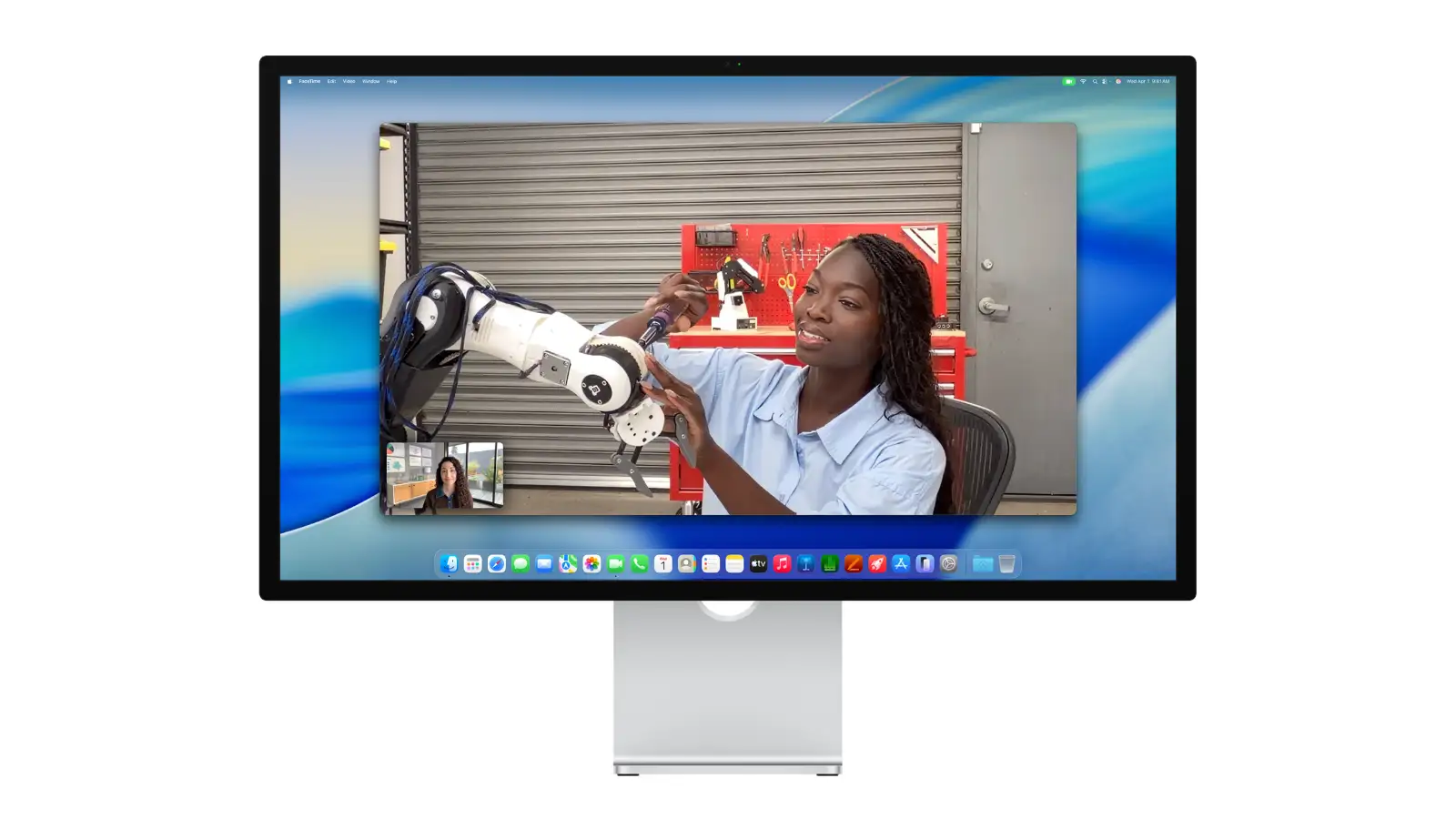
I have barely used the Centre Stage camera and six-speaker system on the Apple Studio Display.
This is not because they are bad, but simply because I am never in a situation where I need a web cam and I always use my AirPods Pro 2.
I mainly used them when I first got the display in April because it was new, and I wanted to test out what I had just bought.
The camera is fine, similar to a modern MacBook Air webcam, and would be good if you regularly take video calls for work, such as through Zoom or Microsoft Teams.
It also supports several useful features, including Centre Stage, which keeps you in frame as you move around, Desk View, which can show what's on your desk, and video effects such as Portrait mode and Studio Light. These can make video calls feel more polished without needing a separate webcam or additional lighting.
The speakers are another pleasant surprise. They're much better than those on other monitors I've used and a significant improvement over the built-in speakers on my Mac mini.
They also support spatial audio and feature force-cancelling woofers to deliver fuller sound from the bottom grills of the display. For many people, the built-in speakers will be perfectly fine and eliminate the need to buy separate desktop speakers.
Is it worth the price?
It depends on what you're looking for.
If you want the best display technology, such as OLED, or a higher refresh rate panel such as 120Hz or 240Hz, the Apple Studio Display is not for you.
You'll find better alternatives from third-party manufacturers such as Samsung and LG, and often at a lower price.
Additionally, if you’re shopping for a monitor larger than 27 inches, or are looking for something smaller, you'll need to shop elsewhere. Apple only offers 27-inch monitors, unless you buy a 24-inch iMac which has the computer built-in.
However, if you work with photos, videos, graphics and rely on a colour-accurate display, or simply want the Apple experience, the premium build quality and the deeper integration, this monitor may be for you.
The colours look great, the 5K resolution makes content sharp, and the physical hardware is hard to beat. It's an experience that goes beyond the display panel itself, with the aluminium enclosure, single-cable connectivity and seamless integration with macOS.
It's also worth considering the 24-inch iMac. It costs less than a Studio Display and includes an entire computer, making it a potential alternative if you're looking for an all-in-one desktop rather than a monitor to pair with an existing Mac. Of course, you lose the flexibility of using the display with different computers, and you're buying a new Mac as part of the package. This could be an appealing alternative if you currently do not have a Mac or Mac display yet.
Would I buy it again?
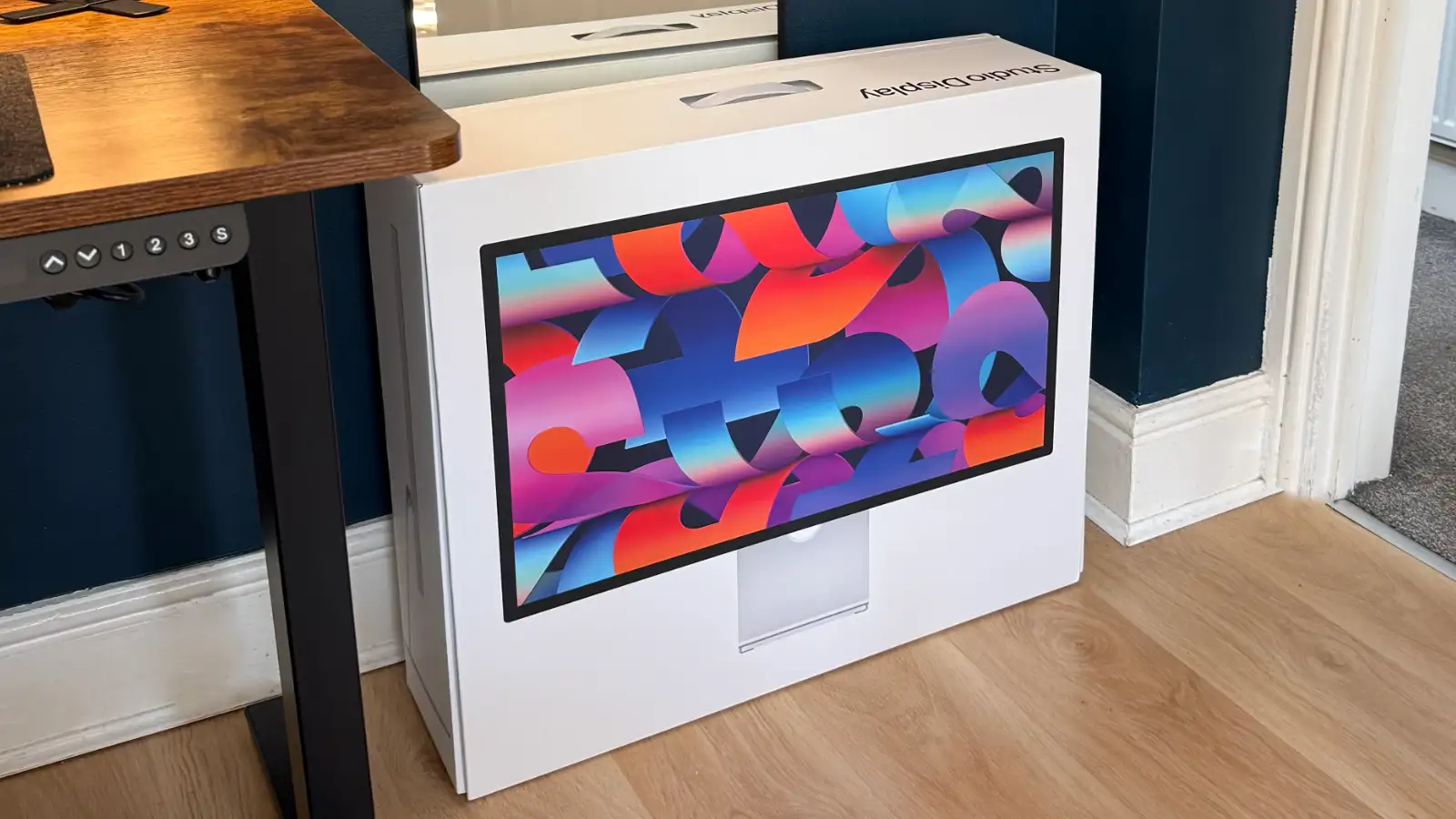
I would buy the Apple Studio Display again and I am in fact considering a second one for my desk setup.
For me, I value the Apple ecosystem integration and appreciate the better build quality. In the past, I've used plastic monitors that creak and get the job done, but there is no connection with the rest of the devices on my desk and it feels like design was an afterthought.
With the Apple Studio Display, it fits right in, anchoring together the pieces of my desk from my Mac mini down to my Magic Accessories.
Yes, it does the same thing as my older MSI £250 monitor, but Apple has intentionally built their display for the devices I use, and that attention to detail makes my time at my desk just that little bit more enjoyable.
And after six months, that's what makes it worth the money to me.